
Note: Most of your configuration options are located under the Settings tab, which appears at the top-right of your account home screen. Of the 240 preferences available to you under this tab, we usually end up adjusting around 12 or 13, and topping out around 15 for complex accounts.
Account Configuration:
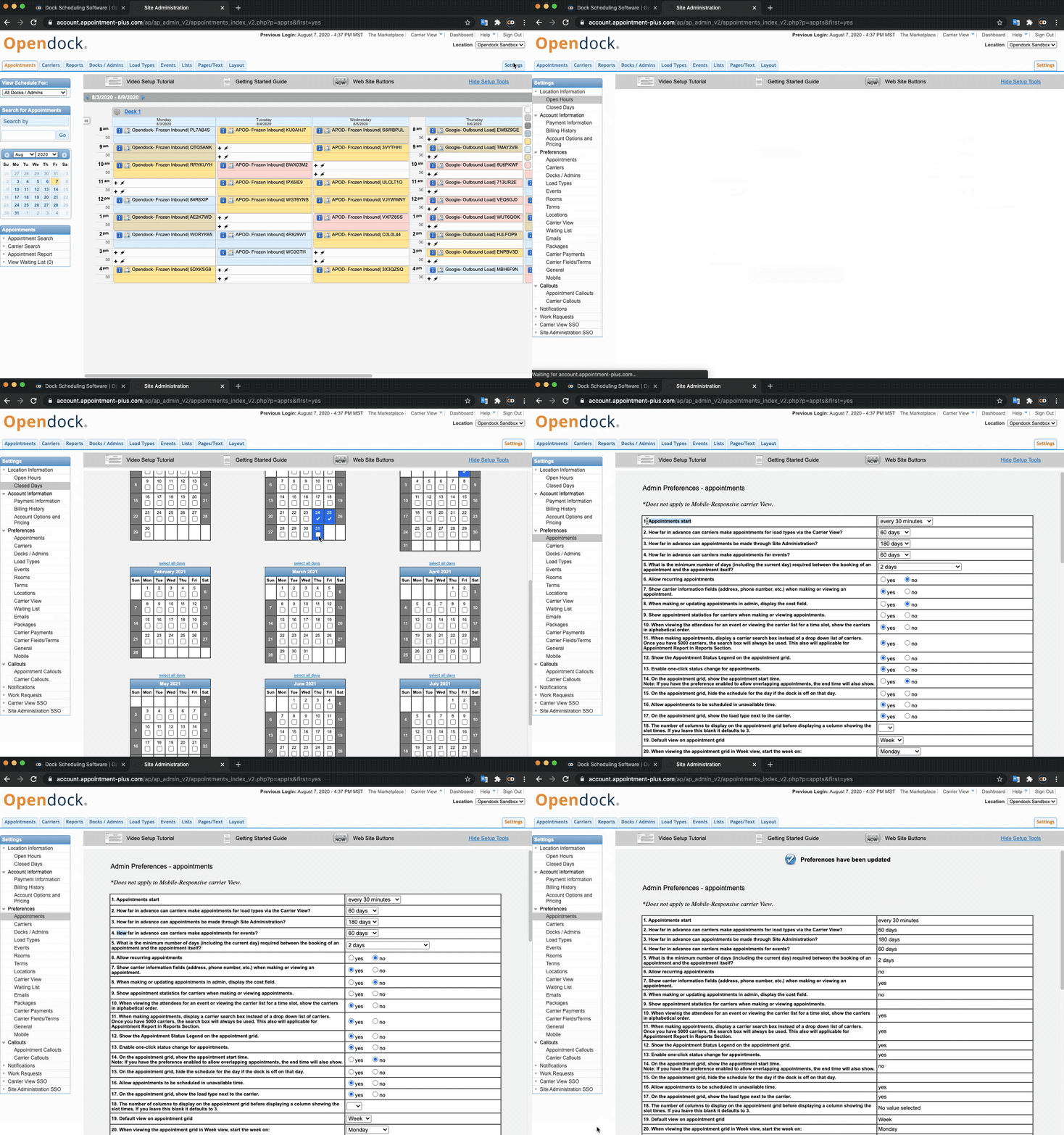
1) Go to: Settings > Location Information
a) Location: Be sure to fill this section out in it's entirety. Accurate spellings of your warehouse name and address are very important because this will help your carriers and drivers know that they are scheduling with, and driving to, the correct location.
b) Contact Person: This should be someone that a carrier can call if the shipment is running late. Feel free to provide a group contact email and phone number so that the carrier is able to reach someone at the facility. For example: opendockbuilding19@example.com is a group email that will go to all of the staff members working in Building 19 which will guarantee someone will see the notification.
c) Carrier View: Please speak to your On-Boarding Representative if you would like to change the Carrier View to our mobile-responsive option. There are some use cases where this is not recommended.
2) Go to: Settings > Open Hours
This is your normal, weekly business Hours of Operations for this specific location. Your Open Hours should accommodate the availability of all of your docks' schedules. For example: If Dock #1 accepts shipments from 7am-3pm and Dock#2 accept shipments from 9am-5pm, your Open Hours should be from 7am-5pm.
3) Go to: Settings > Closed Days
Creating a Closed Day will automatically block out that day across all schedules. This feature is most useful when you need to close all schedules within this location for holidays, emergencies, inventory, etc.
4) Go to: Settings > Appointments
Appointment preferences — Here is where we can dictate the very basic constraints on scheduling. You’ll likely revisit this section of the Settings tab again through your implementation process to make tweaks. But for now, these 6 preferences will get us started in the right direction.
Preference #1: Appointments start ― This is where you’ll set the time increment for your appointment grid. You’ll want to use the lowest common denominator of how long an appointment can last. For example, if you offer both 45-minute and 30-minute appointment times, your appointment grid should be set up in 15-minute increments. By allowing carriers to book appointments every 15 minutes, you accommodate both appointment durations.
Preference #2: How far in advance can carriers make appointments for load type via the carrier view? ― When a carrier is booking an appointment through Opendock, how far into the future do you want them to be able to view and/or schedule an appointment?
Preference #3: How far in advance can appointments be made through Site Administration? ― This function controls how far into the future you and your staff can schedule appointments through the administrative side of your account.
Preference #5: How many days after the current day can carriers make appointments? ― This awkwardly worded preference refers to how soon a carrier is able to schedule an appointment with you. This number can never be greater than the number you select for preference #2 (how far in advance carriers can set appointments), as it will effectively disable your Carrier View. Often times this preference is the next day, or even the same day, but it can vary widely depending on individual needs.
Preference #6: Allow recurring appointments ― This one’s pretty straightforward. If your organization schedules recurring appointments, this preference should be set to “Yes.”
NOTE: Once you’ve selected your settings, be sure to click “Update” at the bottom of the screen to save your changes before moving on.
Next up! Let's set up your Load Types!
***Have any questions? Chat with us live during our business hours (Mon-Fri from 8am-5pm Arizona time). Or feel free to email us anytime at support@opendock.com.***
Comments
0 comments
Please sign in to leave a comment.